The short answer
- Photos: JPEG, or WebP if the site accepts it. Test both because the winner varies.
- Screenshots, text and flat graphics: WebP or PNG. JPEG blurs sharp edges and is often not the smallest here either.
- Transparency: PNG or WebP. JPEG cannot store transparency.
- Upload forms: JPEG is the safest choice because every system accepts it.
What we measured
PNG is lossless: it keeps every pixel exactly, which is why it is huge for photos but fine for flat graphics. JPEG and WebP are lossy: they throw away detail you are unlikely to notice in exchange for a much smaller file.
PNG, JPEG or WebP?
A detailed, grainy photo
A flat screenshot with text
Technical details
How quality settings differ
Quality numbers are not comparable between formats, so WebP at 80 is not the same picture as JPEG at 80. The safest method is to set a size target and compare the results by eye. That is what the compressor does: it searches for the highest quality that fits.
The same picture at different JPEG qualities
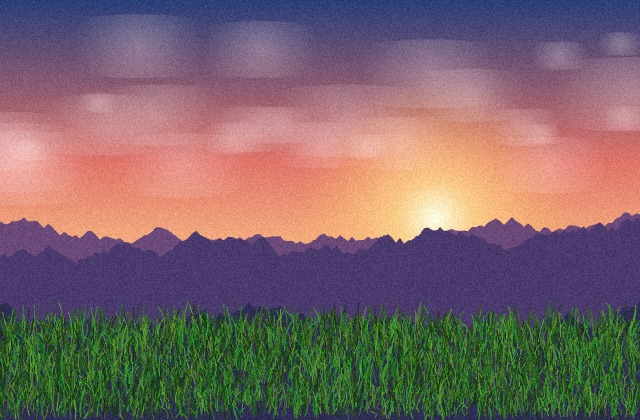
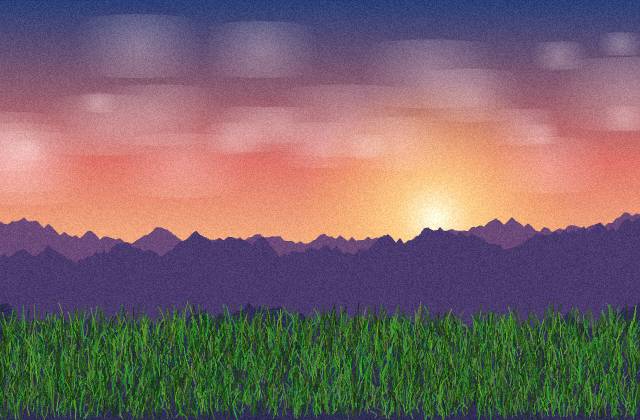
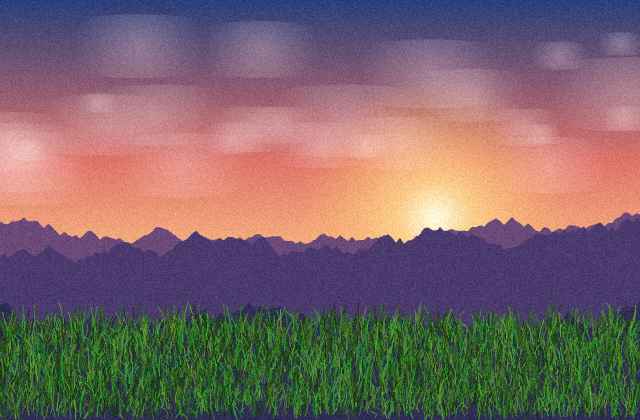
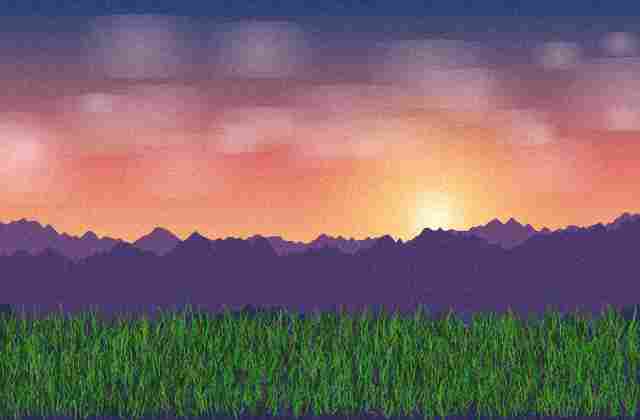
The same quality at fewer pixels (Quality 80)


Compatibility
- JPEG and PNG open everywhere.
- WebP opens in all modern browsers and apps, but some older programs, email clients and upload forms do not accept it.
- HEIC from iPhones is not accepted by many websites. Convert it to JPEG before uploading, which the compressor can do for you.
What this tool does
Pick JPEG or WebP as the output. A PNG is converted to the format you choose, with transparent areas becoming white in JPEG. If the image is already under your size limit it is returned unchanged, except for HEIC photos, which are always converted.